Add a visual signature to a PDF online
What a typed signature stamp does, where it appears, and what to check before sharing.
Jump to a section
Know what kind of mark you need
The word signature is used for several different document workflows. A typed visual name, an image of handwriting, and certificate-backed digital signing are not interchangeable capabilities. Start by identifying what the receiving process actually requires.
YourFreePDF’s available tool adds a typed visual stamp and does not verify identity, create a signing certificate, request another person’s signature, or provide an audit trail. If a project or organization specifies a particular signing system, use that system rather than assuming a visible name is an equivalent substitute. This guide explains a small finishing action with a clear scope, not a universal way to satisfy every document-signing requirement.
Finish the document first
Before adding a mark, confirm that you are working with the version you intend to use. Complete any merging, extraction, page removal, and reordering first. A stamp on an intermediate draft can become confusing if the underlying content changes or the marked page later moves.
Open the PDF and check the bottom-right area of the page where the typed name will appear. The current tool uses a fixed placement rather than a free-position annotation canvas. A busy footer, a table, or a note in that area may make the document unsuitable for this particular action.
Keep an untouched original and a clear name for the working copy.
Type the name and choose the scope
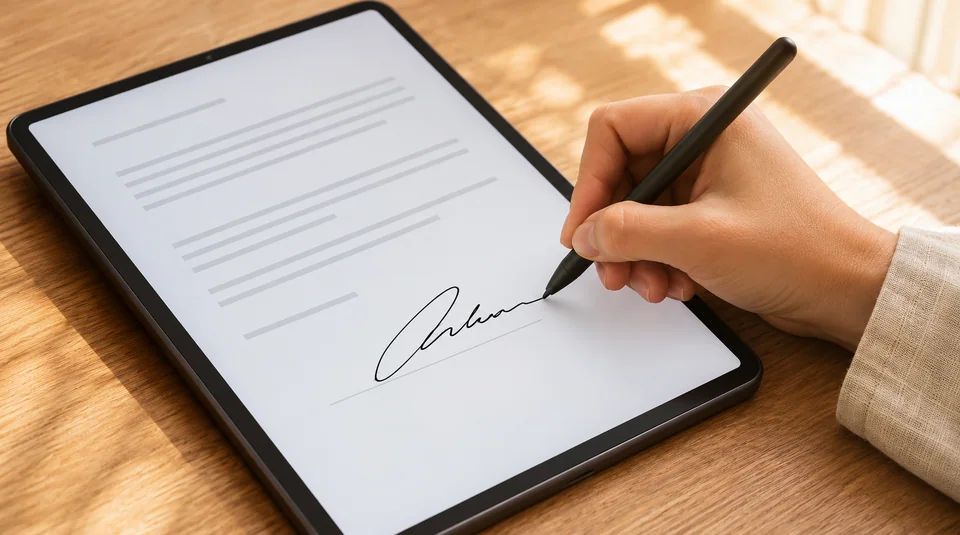
Open the Add signature tool and select one unencrypted PDF. Enter the name exactly as you want it displayed, including spelling and spacing. The appearance uses a standard italic PDF font rather than a captured image of your handwriting.
Latin-compatible text is supported in this version. By default, the tool places the name on the final page. The every-page option repeats it across the document, which may be useful for a particular visual-marking task but also requires more pages to be checked.
Choose that scope deliberately, and do not enable it merely because the option is present if it does not match the intended use of the copy.
Create and inspect the output
Generate the stamped PDF and download the result. Look at the actual saved file rather than the source tab you had open before processing. Confirm that the name is correct and that its placement does not cover meaningful information.
If you selected every page, inspect different page layouts and sizes rather than checking only a simple cover. Keep the result as a separate copy so the source remains available. The tool adapts the text size to the page and the length of the name, but that automatic fit is not a substitute for reviewing whether the visible mark is appropriate for the particular document.
Respect existing signature verification
A PDF may already include a digital signature whose verification depends on the state of the document. Editing or rebuilding that file can affect the existing signature, even if your intended change is only a visible name stamp. Keep such source files intact when their verification matters, and follow the required signing or amendment workflow instead of casually modifying the signed original.
YourFreePDF’s visual tool does not preserve, replace, or create a certificate-backed signing history. This distinction should remain clear when the output is named, stored, and shared, so a recipient is not given an impression of verification that the tool never performed.
Share the reviewed version with context
Choose the exact downloaded copy you inspected, not a previous trial or the original. If the visible name is only a draft annotation or reference mark, describe it accordingly in the surrounding workflow. A good filename helps distinguish source, marked, and final copies without relying on somebody to remember which browser tab produced each one.
If you need a different placement, a signature image, or a request to another person, choose an editor or signing service that explicitly provides those features. Keeping a small tool’s limits clear makes the document handoff easier to understand and avoids treating a convenient visible mark as more than it is.
A quick mark-and-copy check
Read the typed name once more from the downloaded PDF, not from the input field. Confirm that the mark appears on the intended page or pages and that the copy is the right version of the document. Keep your description of the action accurate when you pass the file onward: it has a visible typed stamp, without the identity verification or certificate-backed history of a different signing system.
A clear description helps the recipient evaluate the document in the workflow they actually use.
Keep learning

iLovePDF vs Smallpdf vs YourFreePDF: a practical PDF workflow comparison
Compare document workflows, processing location, previews, conversion limits, signing and the checks that matter before choosing a PDF tool.
Read guideHow to merge PDF files in a few easy steps
Combine related documents into one clear PDF, with the right pages in the right order.
Read guide
Turn images into a PDF—the right way
A practical guide to choosing pictures, arranging pages, and checking the finished document.
Read guide